How to set up IPTV on Firestick for Croatian channels

Want to stream Croatian channels on your Amazon Firestick without endless trial and error?
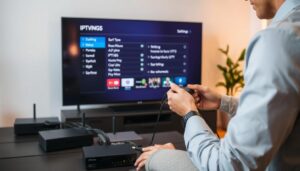
This short guide helps U.S.-based viewers set up IPTV on Firestick to watch live Croatian channels and VOD. You’ll learn how to set up IPTV by installing real apps like IPTV Smarters Pro, XCIPTV, and TiviMate. You’ll also add M3U playlists or portal URLs, and use the Xtream Codes API when needed.
The walkthrough covers sideloading via Downloader, enabling Install from Unknown Apps, checking Fire TV IPTV settings, and basic network tips for reliable streaming. It also notes prerequisites you’ll see later: a compatible Firestick model, stable internet, an active IPTV subscription or playlist URL, and sometimes a MAC address for provider activation.
Follow clear, practical steps that mirror industry methods so you can get Croatian channels up and running fast and smoothly.
Key Takeaways
- set up IPTV on Firestick to access Croatian channels and VOD from the U.S.
- Uses common apps: IPTV Smarters Pro, XCIPTV, and TiviMate
- Supports M3U playlists, portal URLs, or Xtream Codes API logins
- Requires compatible Firestick, stable internet, and an active IPTV subscription
- Includes sideloading tips, enabling unknown apps, and basic network optimization
Why choose IPTV on Firestick for Croatian channels

Choosing IPTV on Amazon Fire TV Stick has many benefits. You can quickly start watching Croatian live TV and on-demand content. No cable contract is needed.
Benefits of IPTV for Croatian content
IPTV gives you direct access to local Croatian channels and programs. Providers offer M3U playlists or portal URLs. This lets you organize channels, create favorites, and keep VOD catalogs.
Enjoy live broadcasts of national events and a growing library of IPTV VOD. This includes Croatian films, series, and talk shows. It’s easy to customize your viewing for family needs and language preference.
Why Firestick is a good device for streaming
Firestick streaming is popular because it’s affordable and easy to buy in the United States. The Fire TV Stick supports sideloading apps like IPTV Smarters Pro. It also works well with third-party players for playlists and API connections.
Built-in Wi‑Fi ensures smooth streaming. You can add an Ethernet adapter for even more stability. Regular updates and broad app compatibility make the Firestick reliable for Croatian IPTV benefits.
What to expect: live TV, VOD, and local Croatian channels
When you set up IPTV, you get a portal URL or M3U playlist from the provider. This package includes streams for Croatian live TV and links for IPTV VOD collections and regional stations.
Some services require MAC activation or use Xtream Codes API credentials for access. Delivery methods vary, but the result is the same. You get instant access to local channels and on-demand content through your Firestick.
Requirements before you set up IPTV
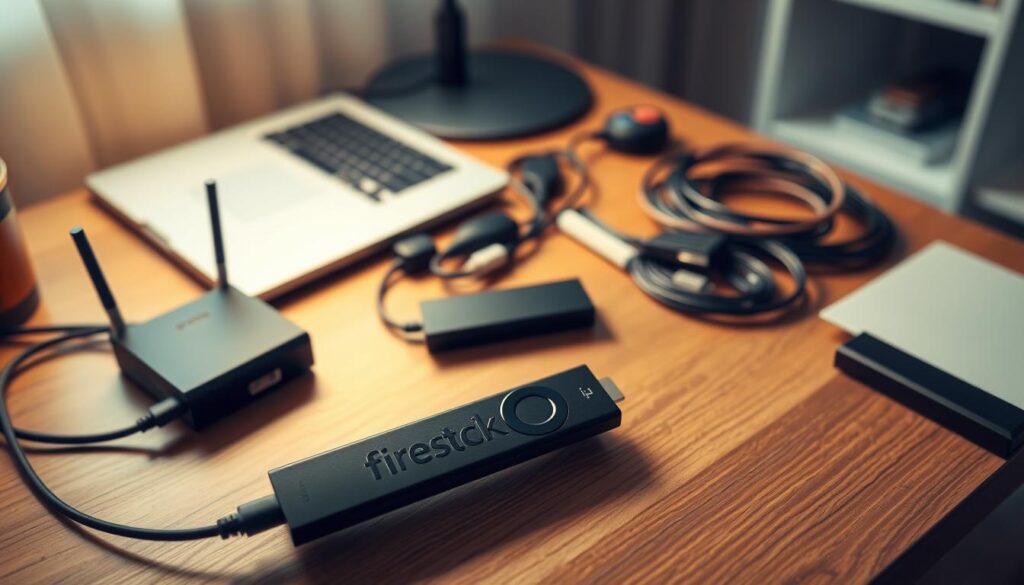
Before starting with IPTV on a Firestick, make sure you have everything you need. Check your Firestick model, ensure a stable internet connection, and confirm your IPTV subscription details.
What you need: Firestick model, stable internet, and IPTV subscription
Choose a compatible Amazon Fire TV Stick. The Fire TV Stick 4K offers the best quality for Croatian channels and VOD. Older models might work but won’t perform as well.
A reliable internet connection is crucial. Opt for wired Ethernet or strong Wi-Fi. If your router is far, an Ethernet adapter for Firestick can reduce buffering and improve channel loading.
Get an active IPTV subscription from a provider that offers an M3U playlist, portal URL, or Xtream Codes API details. They usually provide username, password, and API URL when needed.
How to get a Croatian IPTV playlist or portal URL
After payment, providers send an M3U playlist link or portal URL via email. Check your inbox and spam folder for this message. The playlist URL and portal URL are essential for apps like IPTV Smarters, TiviMate, or XCIPTV.
If your service uses Xtream Codes API, look for the API URL, username, and password. Save these in a secure note for easy app setup.
Checking MAC address and provider activation (when required)
Some devices and apps need MAC address activation. If you use a set-top box like a MAG or Dreamlink, the MAC is on the device label or screen during boot. AVOV and MAG boxes display the MAC in system info.
Give the MAC address to the IPTV provider when ordering for activation. After activation, you’ll get a confirmation email with the portal URL and setup steps.
If channels don’t load, check activation and the portal URL or M3U playlist string. Many problems come from a wrong portal URL, expired subscription, or pending MAC activation.
| Item | Why it matters | Typical source |
|---|---|---|
| Firestick model | Determines video quality and app compatibility | Amazon Fire TV Stick 4K or later |
| Stable internet | Reduces buffering and improves live TV playback | ISP broadband; consider Ethernet adapter |
| IPTV subscription | Grants access to Croatian channels and VOD | Paid IPTV provider with support |
| M3U playlist or portal URL | Primary feed address you paste into apps | Sent by provider via email |
| MAC address (if required) | Used for device activation on some services | Device system info or label on box |
How to prepare your Firestick: settings and permissions
Before you start with IPTV, get your Fire TV ready. A clean system and the right permissions help avoid playback problems. Follow these easy steps to enable sideloading, keep your system updated, and ensure a stable network for Croatian channels.
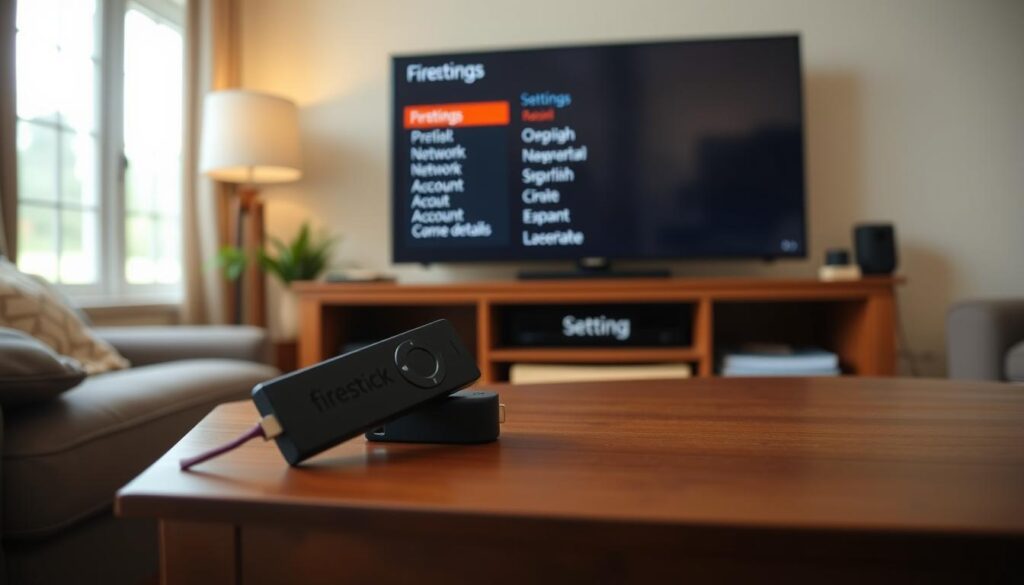
First, install the Downloader app from the Amazon Appstore. Go to Find > Search > Downloader, then download and install. Next, open Settings > My Fire TV > Developer Options > Install unknown apps. Turn ON Downloader to sideload APKs for IPTV apps.
Use Downloader Firestick to get APK files like IPTV Smarters Pro. Enter the APK URL in Downloader and follow the prompts to install. It’s safe to enable unknown apps when using trusted sources and checking file links first.
Update Firestick system and apps for best performance
Keep your Firestick updated to avoid compatibility issues. Open Settings > My Fire TV > About > Check for Updates. Turn on Auto Update Software when available for automatic patches.
Update apps from the Amazon Appstore or within each app. After big updates, reboot the Firestick to apply changes and clear cache. Regular updates ensure smooth IPTV playback.
Network settings: ensure strong Wi‑Fi or use Ethernet adapter
Streaming Croatian channels needs a stable network. Set Network to AUTO (DHCP) in Settings > Network. This matches common settings for MAG/STB devices and IPTV portals.
If Wi-Fi is unreliable, use an Amazon Ethernet adapter for Firestick or a wired Android TV box. A wired connection reduces buffering and packet loss during streaming.
For devices needing time sync, set General NTP Server to POOL.NTP.ORG when prompted by your IPTV provider. This fix helps with some portal logins and prevents channel errors.
| Task | Where to do it | Why it matters |
|---|---|---|
| Install Downloader | Amazon Appstore > Search > Downloader | Needed to sideload APKs and install IPTV players not listed in the store |
| Enable unknown apps | Settings > My Fire TV > Developer Options | Allows Downloader Firestick to install third‑party IPTV apps |
| Check for system updates | Settings > My Fire TV > About > Check for Updates | Improves stability and compatibility when you set up IPTV |
| Update apps | Amazon Appstore or app settings | Prevents crashes and fixes playback bugs |
| Network configuration | Settings > Network | Use AUTO (DHCP) for general setups; switch to Ethernet adapter if Wi‑Fi is weak |
| Time sync (MAG/STB) | Device network or portal settings | Set NTP to POOL.NTP.ORG to avoid portal authentication errors |
How to install popular IPTV apps on Firestick for Croatian channels
Setting up your Firestick is easy with the right IPTV apps. Here are steps for IPTV Smarters Pro, XCIPTV with Xtream Codes API, and TiviMate. Each app is great for watching Croatian channels with the right login info.
Follow these guides to install IPTV Smarters, use XCIPTV Xtream Codes, or add M3U to TiviMate Firestick. Choose the app that fits your provider and viewing style.
Installing IPTV Smarters Pro using Downloader (step-by-step)
First, install Downloader from the Amazon Appstore. Then, go to Settings > My Fire TV > Developer Options and turn on Install unknown apps for Downloader. Open Downloader and enter the APK URL: https://www.iptvsmarters.com/smarters.apk. Click GO to download.
Wait for it to finish downloading. The APK installer will open. Click Install, then Open when it’s done. Log in with your Xtream Codes or M3U details from your IPTV provider. Let the channel lists load.
Using XCIPTV or Xtream Codes API login method
XCIPTV can be installed from Google Play on Android TV devices or sideloaded to Firestick if needed. Open the app and choose Xtream Codes API login. Enter your username, password, and API URL from your IPTV vendor. You should see live channels, VOD, and EPG in the interface.
Installing TiviMate (via Play Store alternatives) and adding a playlist URL
TiviMate is available on Android TV through Google Play. To use it on Firestick, sideload the TiviMate APK or use an alternative IPTV player. Open TiviMate, tap Add playlist, and paste the M3U playlist URL from your provider. Confirm and wait for channels and guide data to appear. TiviMate Firestick setups work best with M3U links and organized channel lists.
Alternative apps and when to use them
Use IPTV Smarters for a full-featured interface that supports playlists, VOD, and EPG via Xtream Codes or portal login. Choose XCIPTV if you have XCIPTV Xtream Codes credentials and prefer a different navigation style. Pick TiviMate Firestick or similar players for advanced favorites and tidy channel management when you have an M3U URL. If your vendor supplies a device-specific app, follow their activation instructions and use MAC activation when required.
| App | Best for | Login type | Notes |
|---|---|---|---|
| IPTV Smarters Pro | All-in-one interface, VOD, EPG | Xtream Codes / M3U / Portal | Easy sideload via Downloader; ideal to install IPTV Smarters for most providers |
| XCIPTV | Users with Xtream Codes API | Xtream Codes API | Great for providers that supply API credentials; may require sideloading on Firestick |
| TiviMate | Organized channel lists, favorites | M3U playlist URL | TiviMate Firestick installs need APK sideloading; best with stable M3U links |
| Vendor-specific apps | Device-locked services | MAC activation or portal | Follow provider instructions; use MAC activation when instructed |
How to set up IPTV playlists, portals, and accounts for Croatian channels
Setting up IPTV on your Firestick is easy if you follow the steps. First, get your subscription details from an email. Make sure you have the M3U playlist or portal URL and Xtream Codes API credentials ready before starting.
To add an M3U playlist or portal URL in IPTV Smarters, choose Add User or Login with M3U/URL. Paste the link from your provider. For XCIPTV, pick M3U or Xtream Codes API and enter the portal URL or credentials. In TiviMate, add a playlist by pasting the IPTV subscription URL into the Playlist URL field. Then, wait for channels to load.
Using Xtream Codes API
Many providers send Xtream Codes API details via email. Open the app, select Xtream Codes API login, and enter the username, password, and API URL as shown. Correct entry will load channels, EPG, and VOD automatically. Keep your credentials safe and double-check for any errors when setting up IPTV accounts.
Common troubleshooting steps
If channels won’t load, first check the portal URL or M3U playlist for typos. Make sure the Xtream Codes API details match the provider email. If using a MAG, Dreamlink, or AVOV set-top box, find the device MAC address and send it to the provider for activation. Check your email inbox and spam folders for activation notices. Reboot the device and re-enter the portal URL when activation is complete.
Network or device issues can also block streams. Ensure your Firestick has a strong connection. Update system software and the IPTV app. If a provider reports a blocked STB, confirm the MAC address submission and wait for their confirmation. Switching to wired Ethernet can help when Wi‑Fi is inconsistent.
Optimize channel lists and favorites
Organize Croatian channels into favorites or custom groups for quick access. Use app features in IPTV Smarters and TiviMate to create playlists for local news, sports, and entertainment. Remove unused categories to reduce clutter and speed navigation. Regularly clean and reorder lists so your top Croatian channels appear first when you set up IPTV.
Conclusion
To start watching Croatian channels on Firestick, first check if your device is compatible. You’ll also need a fast internet connection and a valid IPTV subscription. Make sure Downloader is enabled and install a player like IPTV Smarters or XCIPTV.
Add your M3U playlist or Xtream Codes API to start streaming. If providers ask for a MAC address, give it to them. This is usual for MAG, AVOV, and Dreamlink devices.
Look for portal URLs in your email and wait a bit for activation. If you still can’t watch channels, reach out to support. They can help with activation or any STB restrictions.
Keep your Firestick and apps up to date. Use Ethernet for better bandwidth. Organize your favorites so you can easily find your favorite Croatian channels. These tips will help you enjoy live TV and VOD on Firestick Croatian channels.