How to Easily Set Up IPTV on FireStick—Step-By-Step Guide (2025)
Introduction
Streaming has taken over traditional television, and IPTV (Internet Protocol Television) has emerged as a convenient and cost-effective way to enjoy live channels, movies, and TV shows. If you own an Amazon Fire Stick, setting up IPTV on it can significantly expand your entertainment options.
This guide will walk you through the step-by-step process to install and configure IPTV on FireStick in 2025, including tips on choosing the right app and essential requirements for seamless streaming.
Choosing the Right IPTV App
There are several IPTV apps available for FireStick, each with its features and compatibility. Here are some popular choices:
- IPTV Smarters Pro: User-friendly interface, supports Xtream Codes, M3U URLs, and EPG integration.
- TiviMate: Premium interface, excellent for live TV, perfect for advanced users.
- Smart IPTV is a paid app that requires MAC address registration and features a simple design.
- XCIPTV Player: Well-optimized for FireStick, supports VOD and catch-up TV.
Choose an app based on your provider’s compatibility, ease of use, and your technical comfort level.
What You Need to Know
Prior to beginning, please ensure you have:
- A reliable IPTV subscription with a working M3U URL or Xtream Codes API.
- A stable internet connection (minimum 15 Mbps for HD, 25 Mbps+ for 4K).
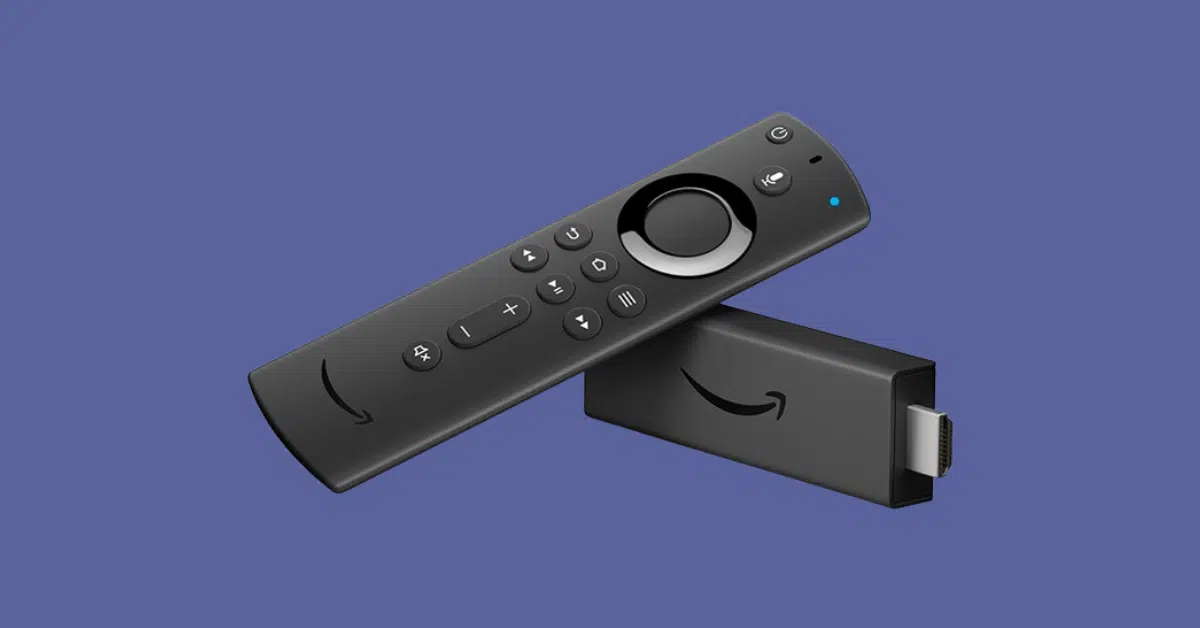
- You should use an Amazon FireStick device, ideally one that is 4K or newer.
- You should also consider using a VPN service to protect your privacy and avoid any potential geo-restrictions.
What are the steps to set up IPTV on a FireStick?
Follow these steps to install and set up IPTV on your Fire Stick:
- Enable Unknown Sources:
- On your FireStick Home Screen, go to Settings > My Fire TV > Developer Options.
- Turn ON “Apps from Unknown Sources” and “ADB Debugging.”
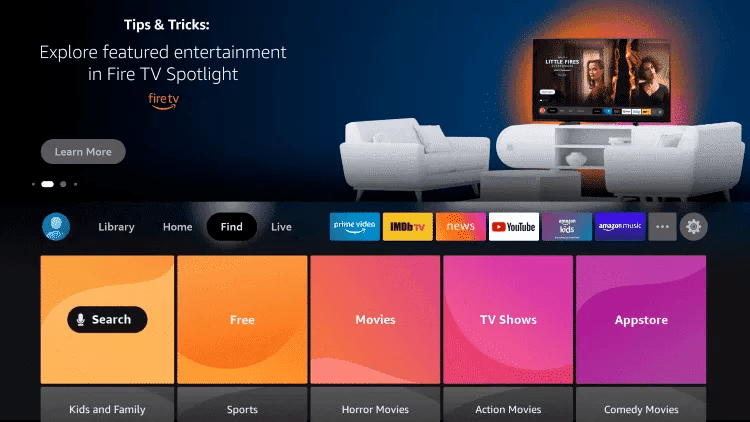
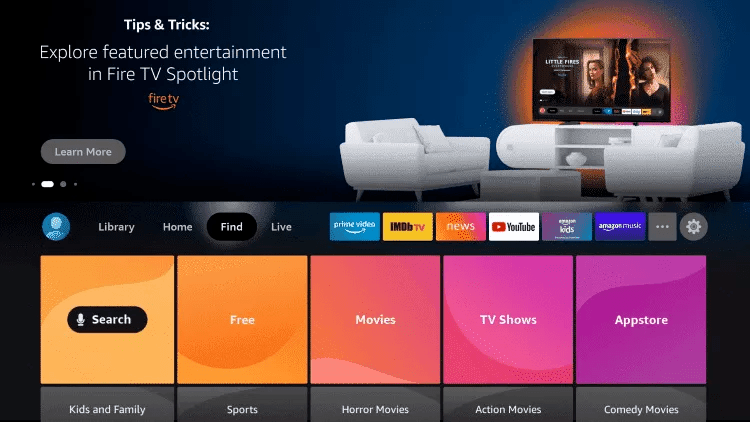
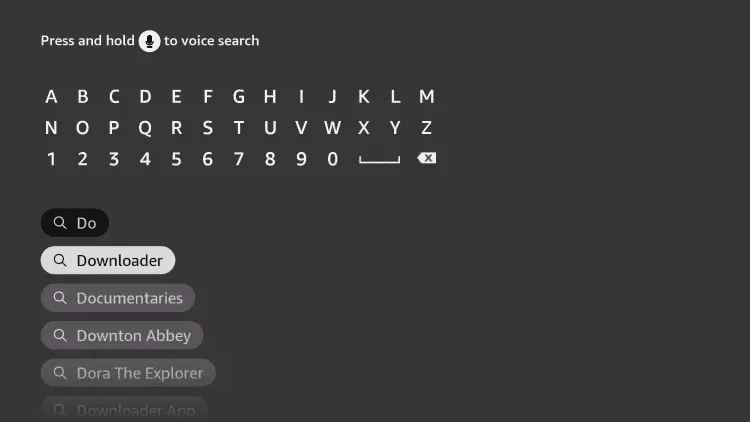
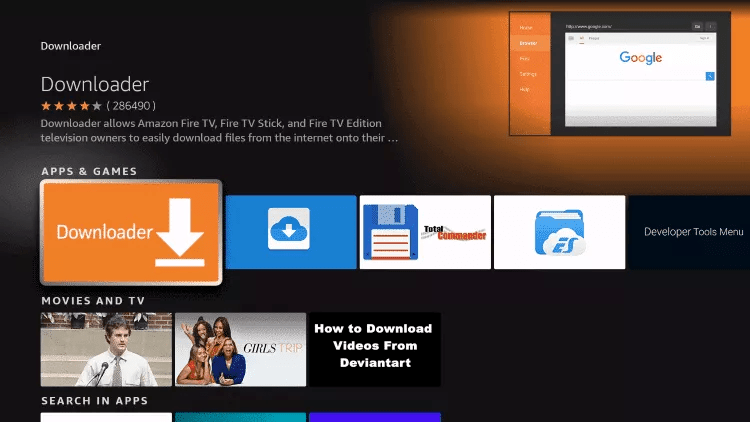
- Install Downloader App:
- Go to Search and type “Downloader.”
- Download and install the app.
- Download IPTV App APK:
- Open the Downloader app.
- Enter the URL of your preferred IPTV app (e.g., IPTV Smarters Pro APK).
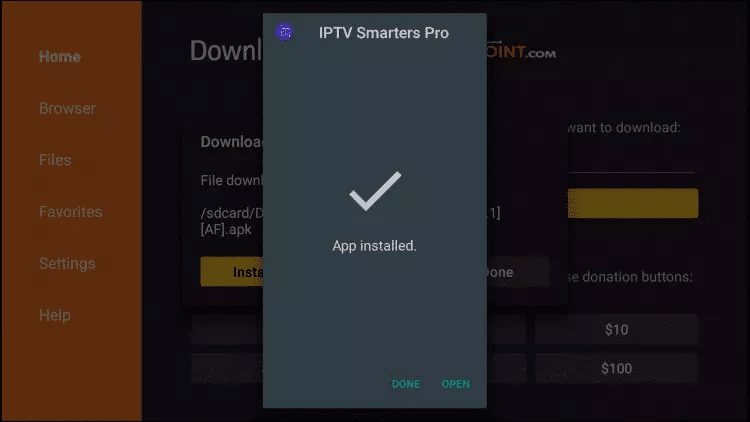
- Download and install the app.
- Configure Your IPTV App:
- Launch the installed IPTV app.
- Choose the login method (M3U URL or Xtream Codes).
- Enter your credentials provided by your IPTV provider.
- Load the content and enjoy!
- Optional—Use a VPN:
- For secure streaming, install a VPN like ExpressVPN or NordVPN on your Fire Stick.
- Connect to a server before launching the IPTV app.
Categories
After installing and configuring your IPTV app, you can delve into a variety of categories.
- Live TV: Local, national, and international channels.
- Movies On Demand (VOD): Blockbusters, classics, and niche titles.
- TV Series: Binge-worthy content with episode listings.
- Sports: Live matches, replays, and 24/7 sports networks.
- Kids and Family: Cartoons, educational content, and family shows.
- Music: Music channels and radio stations.
USEFUL LINKS
Here are some helpful URLs and tools:
- IPTV Smarters Pro APK: https://www.iptvsmarters.com/smarters.apk
- Downloader App: Available on the Amazon App Store
- VPNs for FireStick:
- ExpressVPN: https://www.expressvpn.com
- NordVPN: https://www.nordvpn.com
- TiviMate: The premium version is available through the TiviMate companion app (on Android only).
Installation Guides
Here are quick installation guides for some top IPTV apps:
IPTV Smarters Pro
- Download using the Downloader app.
- Install and launch.
- Choose “Load Your Playlist or File/URL.”
- Enter M3U or Xtream Codes.
TiviMate (requires premium for full features)
- Install from APK via Downloader.
- Open the app and add a playlist.
- Set up EPG if available.
XCIPTV Player
- Download APK via Downloader.
- Install and enter Xtream Codes credentials.
- Navigate through Live TV, Movies, and Series.
With just a few steps, your Fire Stick can become a powerful IPTV device in 2025. Whether you enjoy live TV, blockbuster movies, or niche content, IPTV provides a plethora of options. Just be sure to stay safe with a VPN and choose reputable apps and providers for the best experience.
How to Set Up IPTV on FireStick?
Follow these steps to install IPTV Smarters Pro on your Firestick:
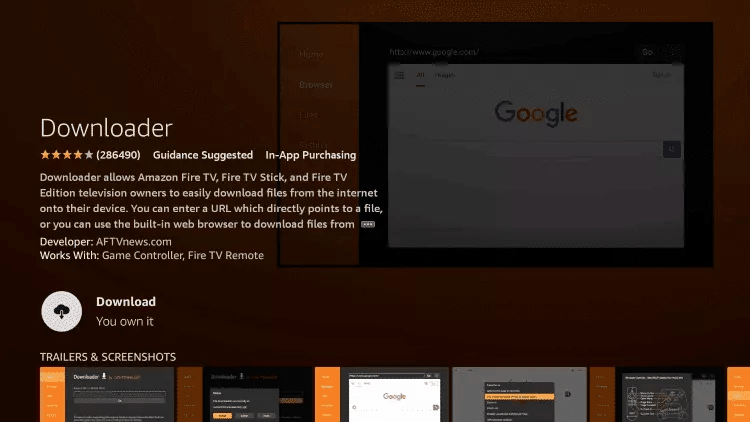
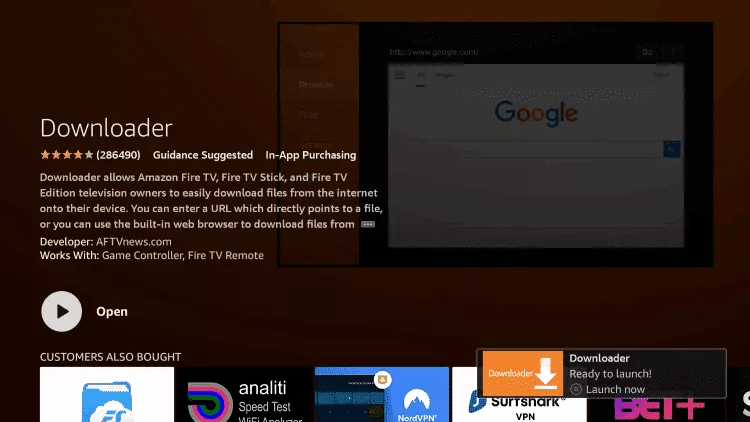
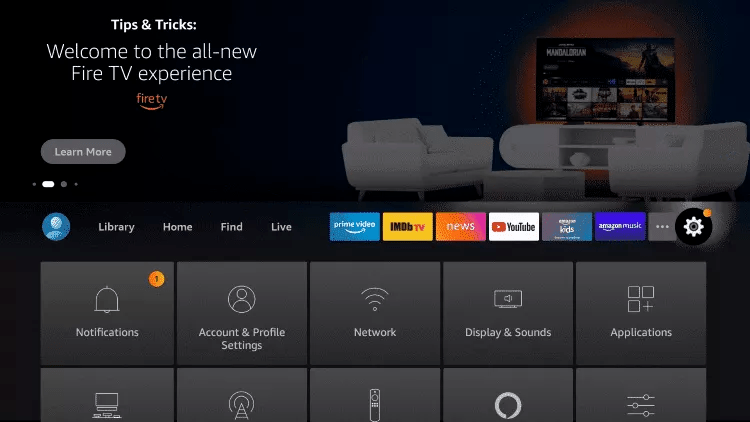

█ If you dont have developper options enabled, do the steps shown on the video below or click here.
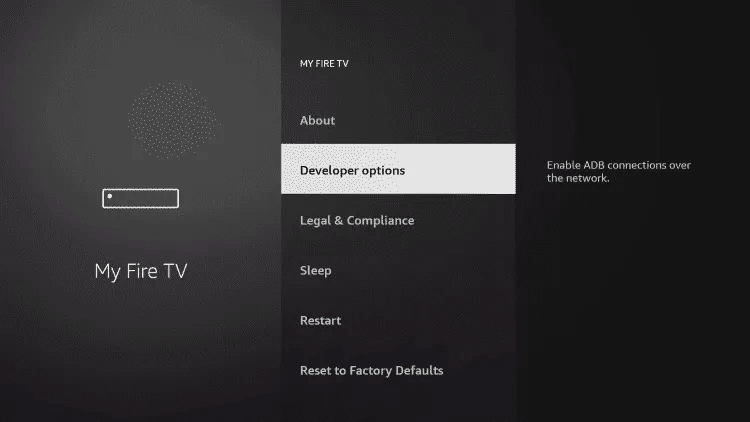
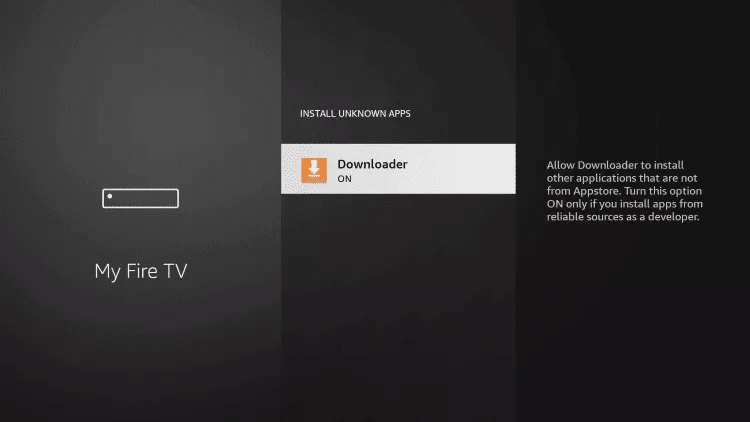
10. Click Install unknown apps.

11. Find the Downloader app and click it.

12. This will turn Unknown Sources to On for the Downloader app. This will enable side-loading on your device.
13. Launch Downloader.
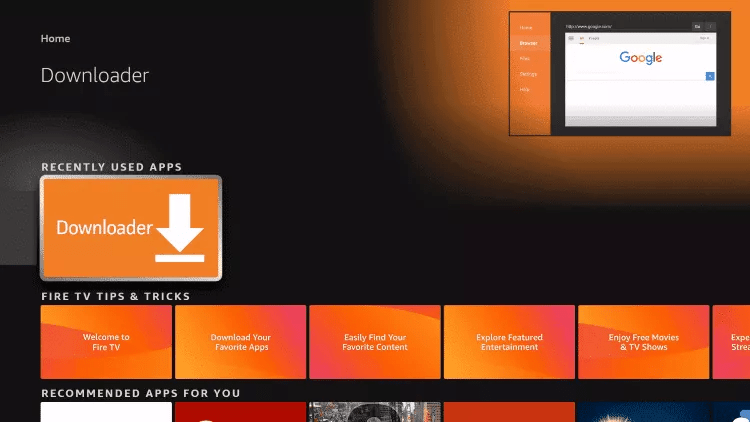
14. Click Allow.

15. Click OK.

16. Type in any of the following codes in the link part:
IPTV Smarters Pro Downloader Code:
6421807
Learn more on IPTV Smarters Pro App
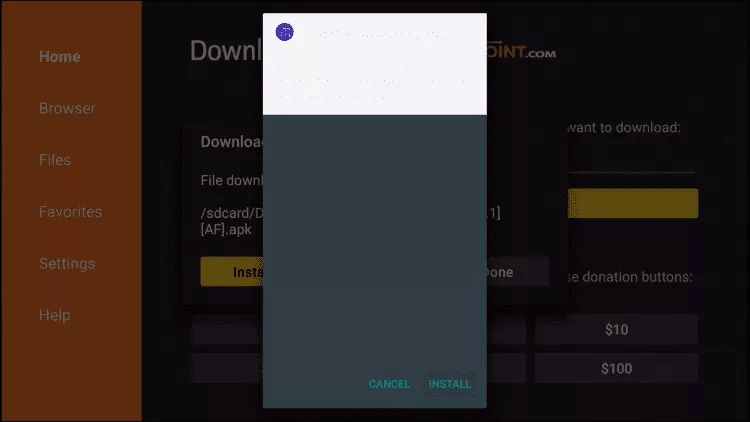
17. Wait for file to download.



- First Box: You can put ANYTHING
- Second Box: Your Username (Found on EMAIL/WhatsApp)
- Third Box: Your Password (Found on EMAIL/WhatsApp)
- Forth Box: Server URL (Found on EMAIL/WhatsApp) – Always Starts with