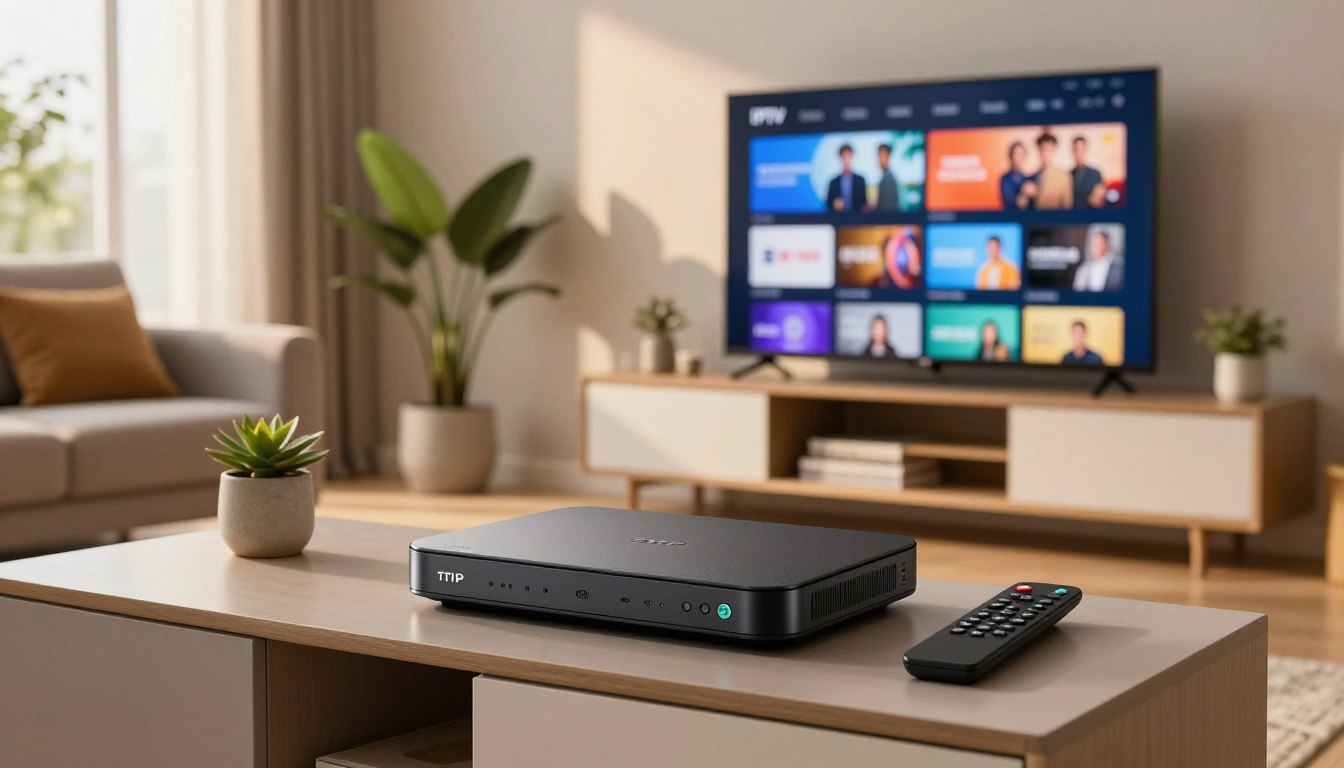
Ever thought adding IPTV channels to a TVIP Box is too hard?
This guide is for those in Croatia wanting to easily set up TVIP Box 2026 models like the 605 and 615. It shows how to add IPTV channels using the Web portal (MAG API) and the M3U playlist method. It also notes that older boxes, like the 410, might need an OS or firmware update or follow legacy setup steps.
TVIP boxes mimic MAG-style middleware and support streaming media, VOD, and OTT apps like YouTube. They come with a web browser, media player, and protocols such as RTSP, RTP, UDP, IGMP, and HTTP. They also read FAT16/32 and NTFS, and support NFS and ext2/ext3 for external storage.
To follow this TVIP setup Croatia guide, you’ll need your provider’s details (portal URL or M3U URL) and the MAC address on your TVIP Box’s back. Your provider will use this to register the device.

Key Takeaways
- Guide covers both Web portal (MAG API) and M3U playlist methods for TVIP Box 2026.
- Modern models like 605 and 615 usually work out of the box; older 410 units may need firmware updates.
- TVIP Box supports common streaming protocols and multiple file systems for media.
- You must have the portal or M3U URL and the MAC address to register with your IPTV provider.
- This article focuses on practical TVIP setup Croatia steps and troubleshooting essentials.
Why choose IPTV and the TVIP Box for streaming in Croatia
Streaming habits have changed fast in Croatia. People want more choices, to watch anywhere, and clear pictures. The TVIP Box offers these features and makes switching easy.
What is IPTV and how it works
IPTV sends live TV and video on demand over the internet, not by satellite or cable. It includes live channels, catch-up TV, and video libraries. You need a provider and a device or app to use it. Kodi, IPTV Smarters, and MyIPTV Player are popular choices.
A good internet connection is key. For HD quality, you need about 20 Mbps. Choose hardware that can handle adaptive streams smoothly.
Benefits of using a TVIP Box over traditional cable
- It’s cheaper for many packages than some cable plans, but still offers live TV and VOD.
- It’s portable, so you can watch your shows while traveling. Croatian expats can enjoy local channels abroad.
- It supports third-party portals and M3U playlists, giving you flexibility in your viewing options.
- There’s no need for bulky satellite dishes or long cables. Setup is easy with ethernet or Wi-Fi.
The TVIP Box has a dedicated device with a powerful processor. It handles modern codecs and future updates. This makes it a better choice than cable for long-term value.
TVIP Box feature highlights relevant to Croatian users
- It fully supports EPG formats like Xmltv and JTV for accurate program guides on local channels.
- It offers timeshift and PVR via USB or SD, so you can pause live shows and record local content.
- It plays a wide range of file formats (MKV, MP4, AVI), supports multichannel audio, and subtitles for foreign streams.
- It has dual-band Wi-Fi and wired LAN options to reduce buffering. Samba and external storage make sharing media easy.
- It comes with built-in apps like YouTube and a browser, giving you more OTT options beyond linear TV.
For those considering IPTV in Croatia, the TVIP Box is a top choice. It offers flexibility and features tailored to local needs. The combination of TVIP Box benefits and internet delivery changes the debate between IPTV and cable for many homes.
Check your TVIP Box model and firmware compatibility
Before adding channels, make sure your device and software can handle new portals and M3U playlists. Some TVIP Box models come with modern UI flows. If you have an older box, you might need a firmware update to match.
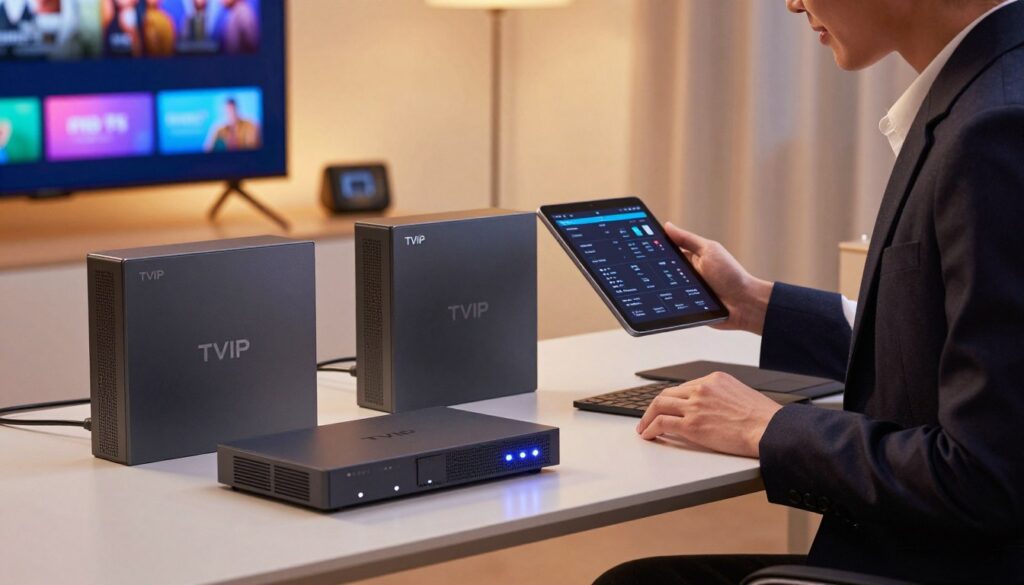
Find your unit’s model number on a sticker or in the Settings screen. New S-Box models like tvip box 605 and tvip box 615 have modern features. But, older models like tvip box 410 might need a different approach.
To see your software version, open Settings and go to About or System Information. This will show you the TVIP firmware and build ID. Write down this version when you contact your IPTV provider or the vendor for help. If you can’t find the Web portal or M3U-playlist options, your firmware might be outdated.
Decide if you need to update your TVIP OS based on the release notes. Update when notes talk about fixing portal or MAG API issues, better M3U parsing, EPG enhancements, network driver updates, or media codec additions. These updates often solve portal loading problems and reduce buffering on live streams.
Firmware updates do more than change menus. They improve compatibility with portal servers, M3U playlists, Xmltv/JTV guides, and network performance. Always back up your settings before updating TVIP OS. This way, you can restore custom portals or MAC registrations if needed.
Prepare before adding IPTV channels
Before adding channels to your tvip box, get a few things ready. Also, check your home network. This quick prep helps when switching to the portal or playlist method.

What you need from your IPTV provider
Ask your provider for the portal URL TVIP for the Web portal or MAG API. For playlists, ask for the M3U URL. You might need account details and activation steps. Many services have a dashboard for device registration.
Locate and note the MAC address on the back of your box
Flip the tvip box over and write down the TVIP MAC address. Keep it safe in a note app or on paper. Your provider might need this to activate your service or whitelist your device.
Network requirements: recommended internet speed and wired vs Wi‑Fi
For one HD stream, aim for at least 20 Mbps. Increase bandwidth for more viewers or UHD content. Wired Ethernet is best for stable playback.
Use 5 GHz Wi‑Fi if your router and tvip box support it. Dual-band routers are common. Try to keep devices away from your streaming access point.
| Need | Recommended | Why it matters |
|---|---|---|
| portal URL TVIP or M3U URL | Provider-supplied address and credentials | Required to load channels via portal or playlist |
| TVIP MAC address | Exact MAC printed on box | Used for activation and MAC-based access |
| Internet speed | 20 Mbps for HD, 50+ Mbps for UHD or multirooms | Ensures smooth playback and fewer drops |
| Connection type | Wired Ethernet preferred; 5 GHz Wi‑Fi acceptable | Stability and lower latency for live TV |
| Provider dashboard | Access to register MAC and manage subscription | Simplifies activation and troubleshooting |
How to add IPTV channels to TVIP Box using Web portal (new version)
This quick guide shows how to set up TVIP Web portal on your tvip box. Follow each step to change content source, set MAG API TVIP mode, enter the portal URL TVIP Box needs, and display channels in Watch TV.
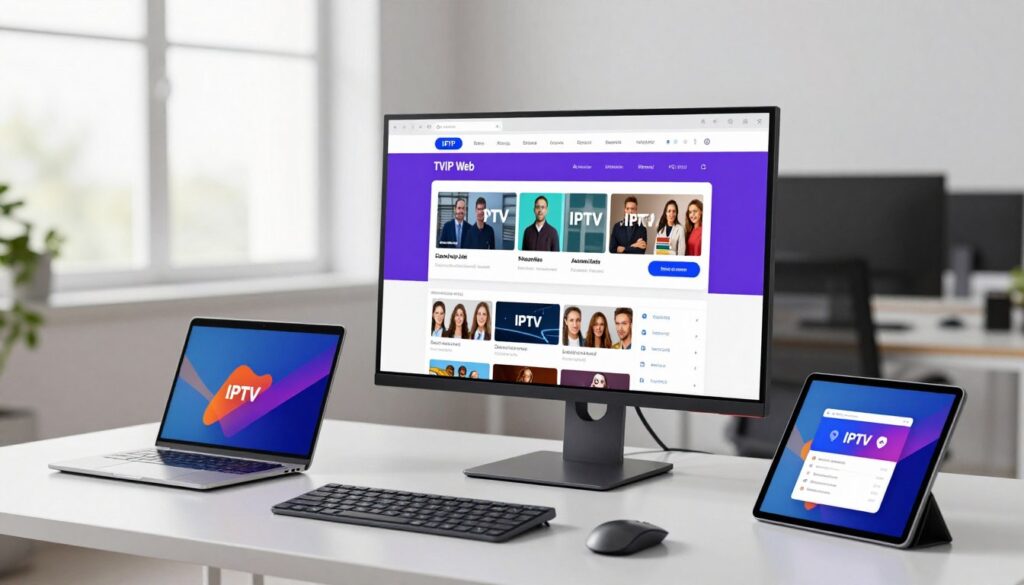
Begin by accessing the main menu after setting your language and time. Open Settings and then TV to find channel options and content source choices.
Switch Content source to Web portal, then open Setup Web portal. This is needed for MAG API TVIP emulation and to receive channels via a portal URL.
Set API Mode to MAG. Enter the portal URL TVIP Box users get from their IPTV provider. Make sure to confirm the exact portal URL with your distributor to avoid connection errors.
Click Apply and choose Restart to reload the box’s configuration. While the tvip box reboots, register the device MAC address with your provider. The MAC on the back links your portal access to your account.
After restart, open Watch TV and wait a few minutes. The portal will connect, and the channel list should fill automatically once the MAC is activated by your IPTV distributor.
- Tip: If the portal fails to load, recheck the portal URL TVIP Box needs and confirm the MAC is registered.
- Tip: Use a wired network for faster portal load and stable channel streaming when you add IPTV channels.
How to add IPTV channels to TVIP Box using M3U url (new version)
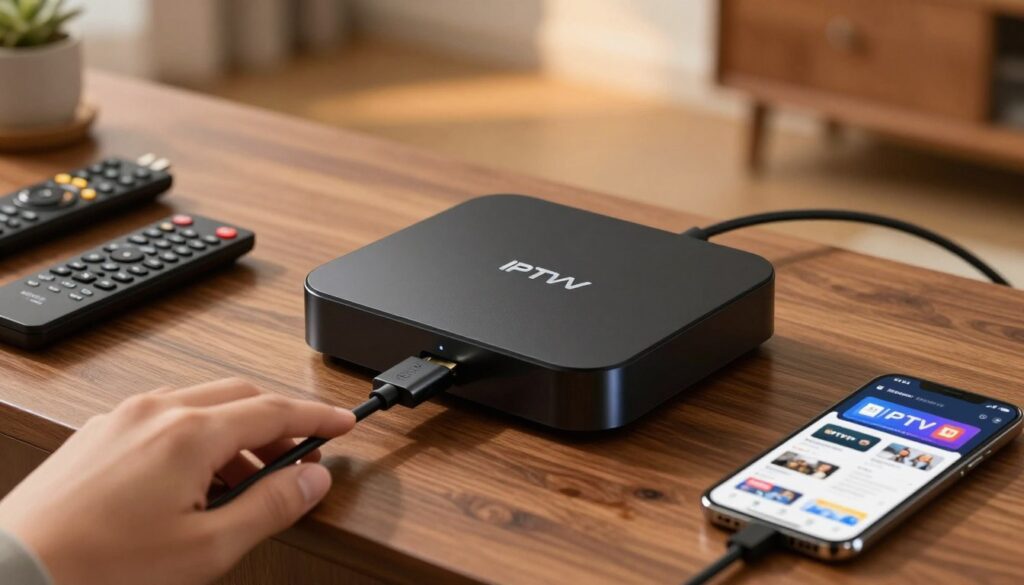
Switching your tvip box to an M3U source lets you load channel lists quickly from a single URL. The steps below keep the process simple for users in Croatia who want a fast TVIP M3U setup.
Step 1 — Select M3U-playlist
From the main menu open Settings > TV. Change Content source to “M3U-playlist”. This tells the box to accept playlists rather than a portal.
Step 2 — Enter the M3U URL
Open “Set up M3U-playlist” and paste the exact M3U URL your IPTV distributor gave you. Some providers include credentials inside the URL, while others require separate login details. Confirm the correct format with your provider before saving.
Step 3 — Apply and restart
Click “Apply” after entering the link, then choose “Restart” to reboot the tvip box. Wait for the system to complete booting before checking channels.
Step 4 — Verify channels
Open Watch TV and allow a minute for the list to populate. If channels do not appear, recheck the M3U URL, confirm your provider’s playlist status, and verify network connectivity. This completes a typical M3U TVIP Box setup.
Troubleshooting common channel and portal issues
If your TVIP Box shows an empty screen or keeps spinning, start with basic checks. Make sure the portal URL is correct, including any slashes or /c paths. Also, test your internet connection and try a wired Ethernet link to avoid Wi‑Fi drops.
Next, check the box firmware. Old or faulty firmware can cause problems. Re-enter the portal address, save settings, and reboot the box. Before you dig deeper, make sure your IPTV provider’s servers are online.
Missing channels? Check if the MAC address on the back of the tvip box is registered with your provider. Open your provider dashboard or send the MAC to support for verification. If everything looks good, ask your provider to check the playlist or portal status for your subscription.
Try reapplying the portal or M3U settings and restart the box. Some providers update playlists only after a manual reload or MAC re-registration.
Having trouble with buffering or poor video quality? Use wired Ethernet for a stable connection. If you must use Wi‑Fi, switch to 5 GHz and move the router closer to the box. Also, reduce the number of streams on your home network to free up bandwidth.
Lower the stream resolution in the player or provider settings to ease load. Clear the tvip box cache, reboot the router and box, and close background apps. If your ISP throttles streaming, consider a VPN for testing. Use a reputable provider that supports fast streaming.
For persistent issues, gather these details before contacting support: box model and firmware version, exact portal or M3U URL, MAC address, and a short description of your network setup. This makes TVIP troubleshooting faster and helps providers reproduce the problem.
Security and privacy tips: using a VPN with IPTV
Streaming on a tvip box is super convenient for users in Croatia. It’s important to protect your privacy and keep a stable connection while traveling. A good VPN for IPTV ensures location access, avoids ISP throttling, and encrypts your traffic.
Why a VPN helps when you travel or face restrictions
A VPN for IPTV connects you to Croatian servers when you’re away. This keeps your access to home channels while traveling in the EU or abroad. It also bypasses hotel or public network blocks that stop portal loading on your tvip box.
Choosing a VPN for smooth streaming
Choose providers with fast, stable servers and unlimited bandwidth. Look for servers in many countries, low latency, and streaming-optimized routes. PIA VPN offers apps for Windows and Android, making it easy to test streams before adding them to your tvip box.
Options to run a VPN for whole-home protection
Most TVIP boxes don’t have native VPN clients. The easiest way is to set up the VPN on your router. This way, all devices at home use the VPN. You can also run a VPN on a spare PC and share that connection. If your TVIP box supports Android apps, you can install a VPN app like PIA VPN to secure just that device.
Practical tips for Croatian users
- Test server speed near your IPTV provider’s location to reduce buffering.
- Register your tvip box MAC address with the IPTV provider while using the VPN off, then enable the VPN on the router if required.
- Use a router with strong CPU and native VPN support for the best performance.
Advanced options and customizations for TVIP Box
The tvip box has features for those who want more. You can set up electronic program guides, record shows, and add custom portals. These features are great for viewers in Croatia who want more control.
EPG and TV guide
Get TV guides with XMLTV or JTV feeds for easy viewing. Look in TV settings for EPG or TV guide options. Point the box to your provider’s XMLTV URL or upload an Xmltv file.
Some providers include TVIP EPG Xmltv automatically. Make sure to confirm feed details with your provider before enabling.
Timeshift and PVR with external storage
Use USB flash drives, external HDDs, or SD cards for recording. Connect drives to the USB-host ports and format them in FAT32 or NTFS. Then, enable TVIP PVR options in System or TV settings.
Pick recording paths and keep free space available. Test a short recording to check compatibility.
Custom portals, APIs and apps
Install custom portals TVIP from third-party distributors or upload your own. The platform supports C++ middleware, an HTML5/JS API, and some Android APKs. Check firmware notes and confirm the portal source is trustworthy before installing.
Use official vendor updates and signed packages when possible. This helps avoid stability or security issues.
- Enable EPG sources early to populate guides before prime time.
- Use powered USB hubs for multiple drives or large HDDs.
- Keep a backup of any custom portal files and the original firmware image.
TVIP Box maintenance and best practices
Proper care keeps your tvip box running smoothly and your streams reliable. Regular maintenance reduces freezes, improves security, and extends the life of the device. Follow simple routines to protect performance and avoid downtime.
Keep firmware and apps updated for best performance
Check for official updates from the manufacturer and your IPTV provider. When you update TVIP firmware, you get security fixes, codec updates, and better portal compatibility. Update any IPTV apps on the box to prevent playback issues.
Clear cache, reboot schedule, and manage installed apps
Clear app or system cache periodically to free memory and reduce crashes. Set a simple reboot schedule, like once a week, or restart when you notice slowdowns. Remove unused apps and avoid untrusted third-party software to lower risk of instability.
Use quality hardware: Wi‑Fi 2.4/5 GHz, wired LAN, and sufficient CPU/box model
Prefer wired Ethernet for stable HD and UHD streams. If you rely on wireless, use the 5 GHz band for higher throughput when supported. Choose TVIP models with a multi-core SoC for smooth playback and future compatibility.
Below is a quick comparison to help pick a setup that fits common Croatian home networks and streaming needs.
| Scenario | Network | Recommended TVIP model class | Notes |
|---|---|---|---|
| Basic SD/HD streaming | Wi‑Fi 2.4 GHz or 50 Mbps wired | Entry-level dual-core | Works for single-room viewing and low bandwidth plans |
| Multiple HD streams | Wired Gigabit or Wi‑Fi 5 GHz with 150+ Mbps | Mid-range quad-core | Stable for families and concurrent streams |
| 4K/UHD or advanced apps | Wired Gigabit with 300+ Mbps | High-end multi-core SoC | Needed for smooth 4K playback and heavy app use |
Adopt these TVIP best practices and schedule routine checks. Good TVIP maintenance helps you avoid common issues and keeps streaming reliable in Croatia.
Conclusion
Adding IPTV channels to your tvip box (new version 2026) is easy if you follow the main steps. First, check your model and firmware. New models like 605 and 615 are different from older 410 units.
Then, get the portal URL or M3U playlist. Also, note the MAC address on the box’s back.
In Settings > TV set Content source to Web portal (MAG API) or M3U-playlist. Enter the provider details, apply changes, and restart. After reboot, wait for channels to show up in Watch TV.
Make sure your provider has registered the MAC if channels are missing. This IPTV setup method works well for TVIP Box Croatia users.
Follow best practices: use wired Ethernet when possible. Keep firmware up to date. Use external storage for PVR and timeshift.
Consider a VPN for privacy and travel. If channels still do not appear, contact your provider’s support. Give them the portal or M3U details and MAC address to complete the setup.